
To integrate BigBlueButton with Moodle, get a server URL and shared secret from a BigBlueButton host or your own server, enter them in Moodle’s BigBlueButton settings, then add a BigBlueButton activity to a course. The activity ships with Moodle, so there is no plugin to install. The real decision is where the server runs.
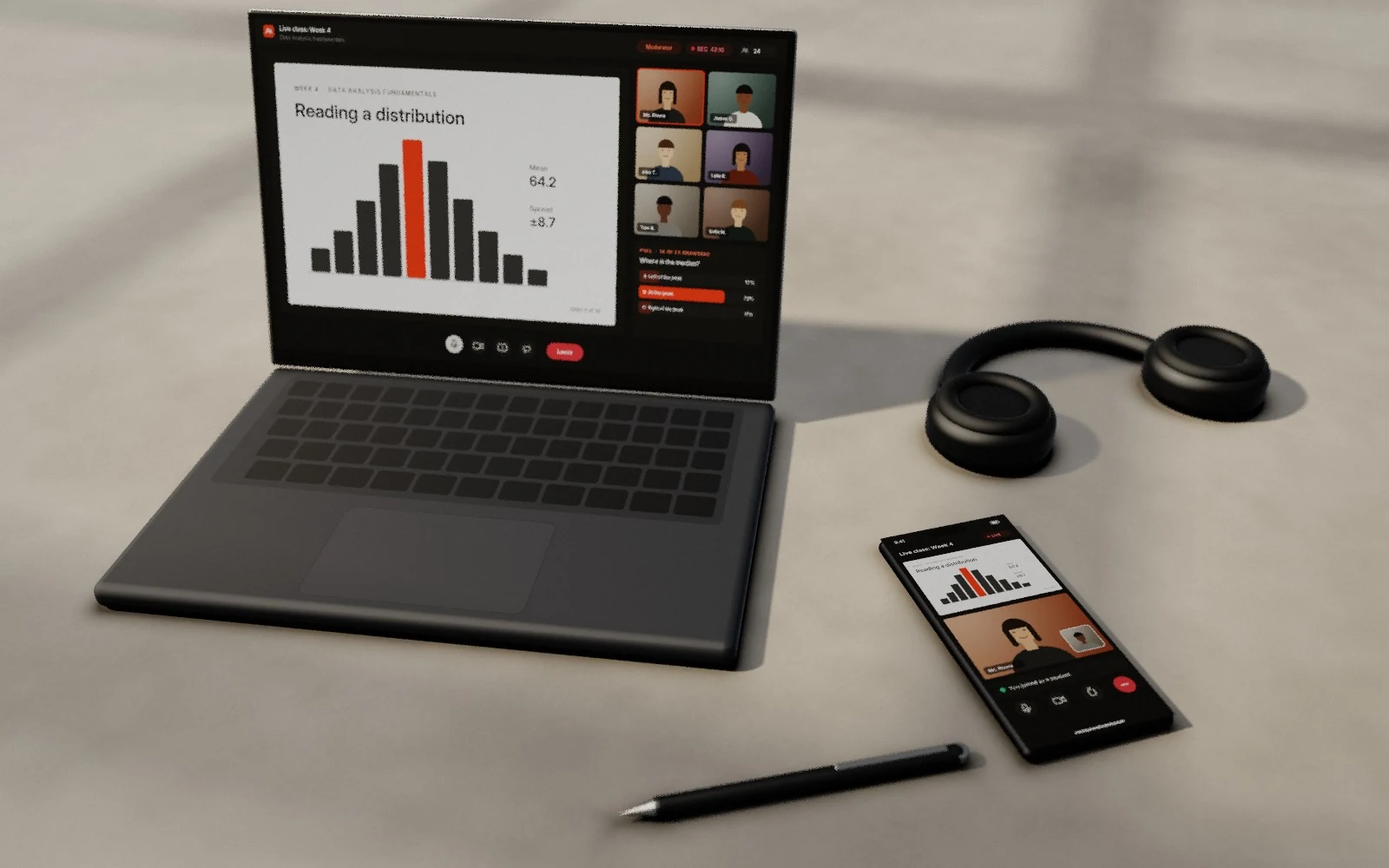
BigBlueButton is an open-source virtual classroom built for teaching, with shared presentations, polls, a whiteboard, screen sharing and chat. We have built on it for INISEG in Spain, where live classes were the first part of a larger Moodle platform. This guide covers the setup, then the choices that matter more than the setup.
Do you need a BigBlueButton plugin for Moodle?
No. BigBlueButton is a core activity in current Moodle, listed with the other activity modules. What Moodle doesn’t include is the classroom server. Moodle is the front door: it creates the session, sends people in and shows the recordings. The class itself runs on a BigBlueButton server, and that is what you have to arrange.
How to set up BigBlueButton in Moodle
- 1.Get a server URL and shared secret. A hosting provider gives you these. On your own server, run `bbb-conf --secret` to show them.
- 2.Enter them in Moodle. As an administrator, open the BigBlueButton settings under Site administration › Plugins. The URL includes the protocol and ends in /bigbluebutton/.
- 3.Set your defaults. In the same area, choose session defaults and which recording formats people can view.
- 4.Add it to a course. With edit mode on, open the activity chooser and pick BigBlueButton. Give it a name and, if you like, a welcome message.
- 5.Set who runs the class. Assign moderators in the participants list, and tick “Wait for moderator” if students shouldn’t start without a teacher.
- 6.Schedule it. Set a start time and a cut-off time. The session appears in the course calendar, and the join link shows at the set time.
- 7.Run a test class. Join as a teacher and as a student on separate devices, with a phone among them, before the first real session.
Where should the BigBlueButton server run?
You have three realistic choices. Which one fits depends on how many people join at once, and how much you want to look after yourselves.
| Free tier | Paid hosting | Your own server | |
|---|---|---|---|
| Best for | Trying it out | Most schools and training companies | Large or data-sensitive sites with technical staff |
| Limits | See the list below | Set by your plan | Set by your hardware |
| Who runs it | The provider | The provider | You: updates, security and capacity |
| Data location | Provider’s choice | Check with the provider | You decide |
The Moodle 5.3 documentation lists these limits for the free tier, so read them before you plan a term around it:
- Sessions end after 60 minutes
- Up to 25 people per session
- Recordings expire after seven days and can’t be downloaded
- Student webcams are visible only to the moderator
If you self-host, give BigBlueButton its own server. It handles live audio, video and screen sharing, so don’t run it on the same machine as Moodle. Test with a realistic number of students before you rely on it: the first full class is the wrong time to find your limit.
Recordings: decide before the first class
Recording is where most surprises come from. Administrators choose which formats everyone can view under Site administration › Plugins › BigBlueButton › Recordings. On Moodle 5.3 the video and presentation formats are included by default. Before you start, settle three things: how long recordings are kept, who can watch them, and whether students are told they are being recorded.
Recordings are personal data when they show people’s faces, voices or names. If you teach in the UK or EU, check where they are stored and how long you keep them, and take advice on your own obligations.
What the standard activity doesn’t do
The built-in activity covers most courses. Institutions tend to outgrow it in the same few places, and these were the gaps we closed for INISEG:
- Detailed attendance. We record how long each student took part, reconnections and attendance status, with CSV exports and session reports.
- Scheduling around the class. Invitations, reminders and Google Calendar sync.
- Rewards tied to taking part. Attendance feeds reward points in Moodle.
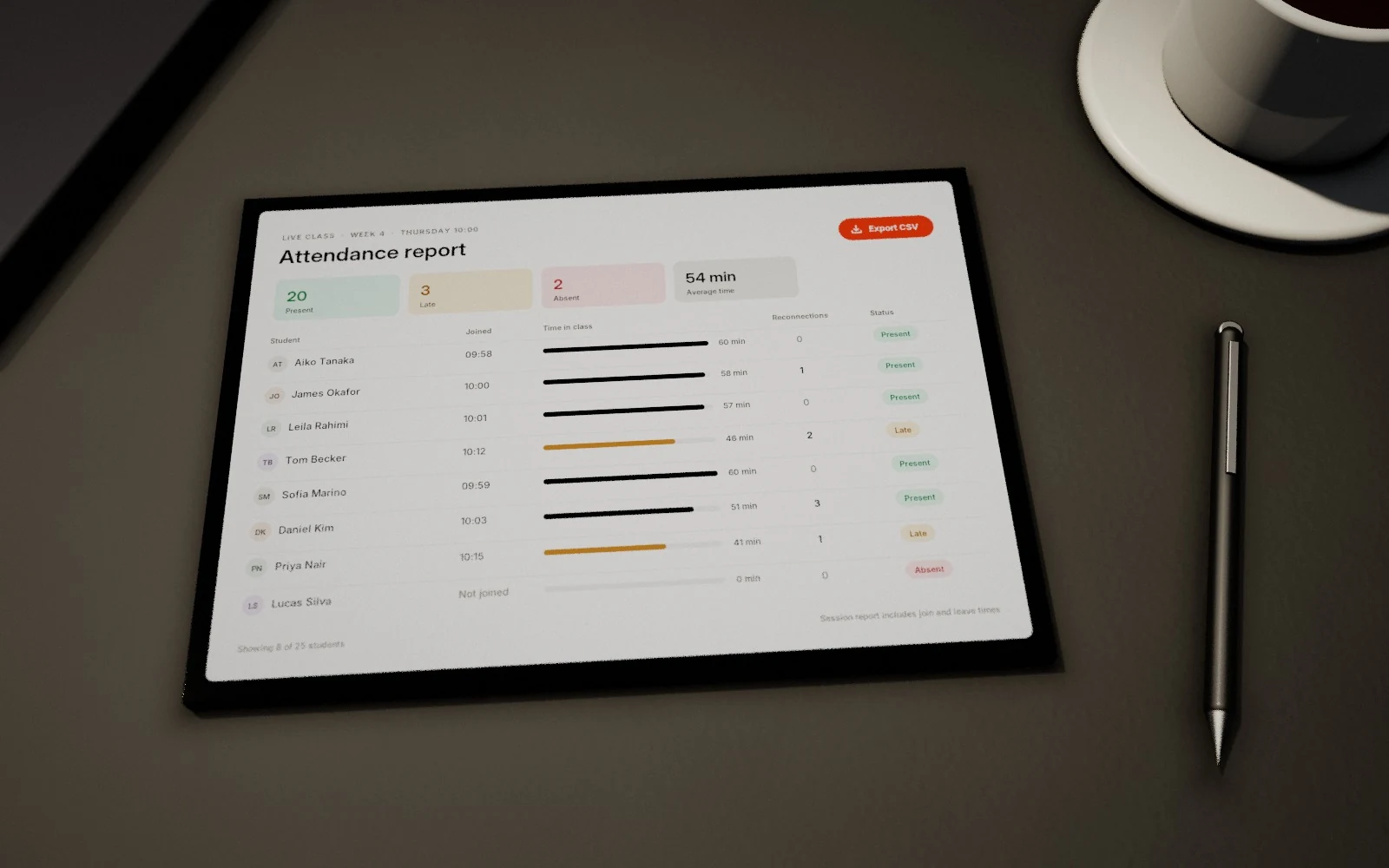
Each of these needs custom work on top of BigBlueButton, which is worth planning only when a course really needs it. The INISEG case study shows how it fits together.
BigBlueButton or Zoom in Moodle?
BigBlueButton is built for teaching and is built in to Moodle, but someone has to host it. Zoom is familiar and you may already pay for it, but it’s a plugin, and it’s a general meeting tool. If your teachers already run classes happily on Zoom, the Zoom plugin may be the shorter road. If you want classes, recordings and grades to live in Moodle under your control, BigBlueButton is the stronger choice. Our Moodle integrations list compares the live-class options, along with sign-in and payments.
Frequently asked questions
Is BigBlueButton free with Moodle?
The software is open source and the Moodle activity is free, but the server isn’t. There is a free tier with limits on session length, group size and recordings; beyond that you pay for hosting or run your own server.
Why is BigBlueButton greyed out in Moodle?
The server isn’t set up yet. On Moodle 5.3 no default credentials are bundled, so an administrator must enter a server URL and shared secret before teachers can add the activity.
How do we find the BigBlueButton server URL and secret?
Your hosting provider gives you both. On your own server, run bbb-conf --secret, which prints the URL and the shared secret.
Can guests join a BigBlueButton class without a Moodle account?
Yes, if an administrator turns on guest access in the BigBlueButton experimental settings. Teachers can then allow it per activity, and a meeting link and password appear. It doesn’t work if your site forces everyone to log in.
Can BigBlueButton sessions be graded in Moodle?
Yes. The activity has a grade setting, using points or a scale, like other Moodle activities.
Need live classes set up properly, or attendance your standard setup can’t give you? Tell us what you’re running and we’ll send a written quote. Planning an upgrade first? Our Moodle plugin compatibility checker shows what will carry over.
Related serviceMoodle IntegrationsSSO, payments, BigBlueButton, Zoom and SCORM. Written byMuhammad AhmadFounder & Software Engineer at StackStead Solutions. Building for the web since 2020.Ask a question